Choosing a Delivery Provider for an Order (Delivery Orchestration)
What is Delivery Orchestration?
Delivery Orchestration gives retailers the flexibility to choose how each delivery order is fulfilled. Instead of routing every order through a third-party delivery service automatically, stores can decide on an order-by-order basis whether to use their own delivery staff (Own Delivery) or send the order to an integrated delivery partner such as Uber Direct, DoorDash Drive, or OnFleet. This allows stores to select the most efficient and cost-effective fulfillment method for each delivery while continuing to manage orders from a single workflow. Once a delivery method is selected, the platform will handle tracking and status updates accordingly, whether the order is being delivered by the store's team or an integrated third-party provider.
1. Open the orders page on liquorapps.com and find the delivery order you need to fulfill. Open the order using the Order Number link.
2. When you click "Schedule for delivery", you'll be prompted to choose between Own Delivery or 3rd Party delivery.

In the following example, the store is set up with Uber as the delivery partner. If your store is set up using OnFleet or DoorDash Drive, you will see that option instead of Uber.

If you are going to deliver the order yourself using your own staff, select "Own Delivery". From there, you will be responsible for updating the status from Scheduled to Delivered.
If you are not going to fulfill the delivery using your own driver, then select "Uber/DoorDash/OnFleet". This will then proceed as a normal order as you may have been used to prior to this update. Uber will update the status to Delivered when it is dropped off with the customer.
A Delivery Provider ID will be populated and you can then track the delivery.

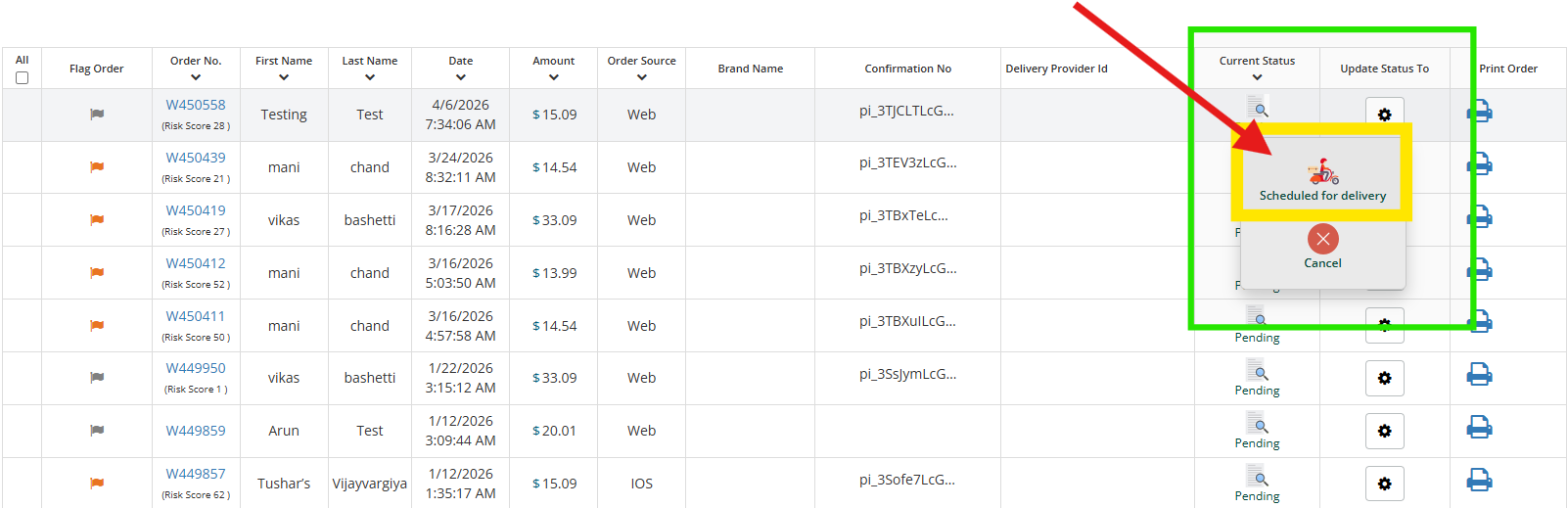
If you're looking at the orders screen from the main Orders Page (without clicking into a single order), you can perform the same action from here.
Select Update Status To, click the gear icon and select Own Delivery or Uber/DoorDash/OnFleet. From here, the process will be the same as above.